Sunday, July 13, 2014
Vertical Pulfrich Effect: The Secret Behind 3Dfier 3D Conversion
Sunday, December 9, 2012
3Dphile Youtube Videos
Here is the new URL. Videos are coming soon.
http://www.dailymotion.com/3DPhile
Monday, January 16, 2012
Happy Chinese New Year!
Happy New Year!
3Dfier staff
Friday, December 16, 2011
Review of the 3Dfier Viewer Stereo 3D Accessory For iPhone 4(S)
http://3dvision-blog.com/review-of-the-3dfier-viewer-stereo-3d-accessory-for-iphone-4s/
Wednesday, November 9, 2011
Best 3D and 2.5D viewing for iPhone/iPod Touch with 3Dfier Viewer!

3Dfier Viewer brings excellent 3D viewing experience on your iPhone and iPod Touch!

The 2.5D View port on the other side is designed and manufactured in a way to create depth from color components. This lens can create great 3D depth from colorful scenes and it is also a x3 magnifier that would enlarge iPhone/iPod touch screen three times to make the best use of the Retina Display that comes with iPhone 4+ and iPod Touch 4+.
-Extra light weight: Only 29g. Does not add any burden to iPhone/iPod video viewing
-Easy to carry: fold flat and carry easily.
-High quality: beat most 3D Head Mount Displays when used with iPhone 4+ and iPod Touch 4+ with Retina Displays.
-Controllable: you can still access iPhone/iPod Touch touchscreen while playing video files.
-2 in 1: 3D viewing and 2D/2.5D magnified viewing in a box. Good 2D to 3D conversion for colorful films such as nature scenes, animations and cartoons.
-Attractive price: never thought you got such a high quality 3D with such affordable price: we
offer for one piece USD 5 FOB Taiwan (excluding shipping). You can place your order here. For volume price, please contact us 3Dfier@3Dfier.com.. Caution:
Please use Glasses Cloth to clean the lens and nothing else.
Where to find 3D contents:
3D contents are now widely affordable in Youtube. Search the keyword "yt3d" to find 3D contents from Youtube. You can also use our Facebook community as your portal to access 3D contents from your iDevice directly.
If you have side-by-side 3D videos on your hard drive, you can use streaming software such as Air PlayIt or Air Video to stream the 3D videos directly to your iDevice and you can watch them live in 3D with 3Dfier Viewer!
Wednesday, August 24, 2011
3DTV Desktop Release!
We are happy to announce the first release of 3DTV Desktop today!
3DTV Desktop is a software solution that allows you to navigate and control your Windows7 desktop that was projected to 3DTV seamlessly when you turned on the side-by-side to 3D mode on your 3DTV. The side-by-side to 3D mode on 3DTVs assumes the contents on the screen are all side-by-side video and always convert them to the 3D mode. This is very annoying when you are actually projecting your PC screen to the 3DTV. For example, when you are viewing Youtube 3D contents in side-by-side format through your 3DTV, you would need to use your remote to turn on side-by-side to 3D and when you are done with that specific clip, you will need to use your remote control again to turn it off so that you can control your Browser or Windows screen properly before you start viewing another 3D clips again. Then you need to use your remote control again to switch to the side-by-side to 3D mode.
Requirements:
Windows 7 with Aero Glass support is required to run 3DTV Desktop. From the "Personalization" Control Panel. Choose one of the Aero themes to enable Aero Glass Support.
As the screen will be reduced into half width, it is recommended to choose larger font from "Display" Control Panel for a better view.
Known Issue and Limitation:
When you saw a "Failed to register hotkey" error message, it is because 3DTV Desktop application is already running.
When at 3DTV mode, there would be 2 cursors on the screen. The thinner one is the right cursor for the screen. This is the limitation of the product and we will not be fixing it. It won't affect your pleasure viewing 3D contents.
How to use 3DTV Desktop: please see here.
How to Use 3DTV Desktop
Windows 7 with Aero Glass support is required to run 3DTV Desktop. From the "Personalization" Control Panel. Choose one of the Aero themes to enable Aero Glass Support.
As the screen will be reduced into half width, it is recommended to choose larger font from "Display" Control Panel for a better view.
How to use:
Download and extract the 3DTV Desktop V1.0.0.exe. No need to install the application. Connect your PC to the 3DTV and set display mode to external (projector) only by Win + P key. While output is at 3DTV only, run 3DTV Desktop V1.0.0.exe.
When the application is first executed, you will see the display shrink in half to the left like:
You can now turn on the 3D mode from your 3DTV remote and choose to convert side-by-side to 3D. Now you will see left screen and the right white background overlayed to show a bright normal Windows Display.
Under 3DTV mode, you can use "Ctrl+2" to go back to normal Display and "Ctrl+3" to enter the 3DTV mode again.
3DTV Desktop detects the display mode changes and apply the settings to the primary display. If you see a wrong dimension after mode switches, press ctrl+2 and then ctrl+3 to reset the dimension.
3DTV Desktop will monitor the top Window in focus and when it becomes full screen, 3DTV Desktop will automatically switch to normal mode so that you can watch the full screen video in 3D automatically. This is very useful when you play side-by-side videos from a player or from the website. For example, when you see a 3D side-by-side Youtube video on the Youtube web page, you will see the video displayed side-by-side on the page. Once you click to play the video in full screen, you will see the video played in 3D seamlessly on your 3DTV and when you exit full screen mode, 3DTV Desktop would automatically switch back to 3DTV mode so that you can gain control to the browser screen without having to turn off the 3D mode from your 3DTV by the remote control. This is a life saver for 3DTV owners!
Use tray menu to quit/exit 3DTV Desktop or register the product.
Known Issue and Limitation:
When you saw a "Failed to register hotkey" error message, it is because 3DTV Desktop application is already running.
When at 3DTV mode, there would be 2 cursors on the screen. The thinner one is the right cursor for the screen. This is the limitation of the product and we will not be fixing it. It won't affect your pleasure viewing 3D contents.
Thursday, June 23, 2011
New Software Release This Summer
Thursday, May 19, 2011
New Download Website
Monday, January 24, 2011
Closing from 1/29~2/7 for Chinese New Year holidays
We will be closing for Chinese New Year holidays from 1/29 to 2/7. We will not be able to deliver for any order placed during this period. Please be patient with us and we will provide our best support after the holiday. Happy Chinese New Year!
3Dfier staff
Wednesday, August 11, 2010
3Dfier supports 3DTV!
Most 3DTVs on the market today have the capability to turn side-by-side video to frame sequential format automatically with a 3D button on the remote control to work with the shutter glasses that come with the 3DTV. This is mainly for the 3D broadcasting that are running in side-by-side format. What you need to do is to use either Stereoscopic Player or Media Player Classic and make sure you set the output format to side-by-side (which is default of 3Dfier) and play the video to full screen. Then turn on the side-by-side to 3D by the remote control et Voila!
Some 3DTVs like Samsung's disabled the side-by-side to 3D conversion when the input is HDMI 1.4 3D compliant mode (1280x720@60Hz or1920x1080@24Hz) . Make sure you do not set to these modes in order to make it work. In fact, if you are running a current shipping PC, it might come with only HDMI 1.3 and you won't have the HDMI 1.4 3D support. This is bad for BD3D playback but it will work well with side-by-side to 3D conversion or 2D to 3D conversion with 3Dfier! Enjoy the experience of 3Dfier on the large TV screen today!
Tuesday, July 13, 2010
User's Guide for Stereoscopic Player
Requirement:
Stereoscopic Player 1.5.4 or above.
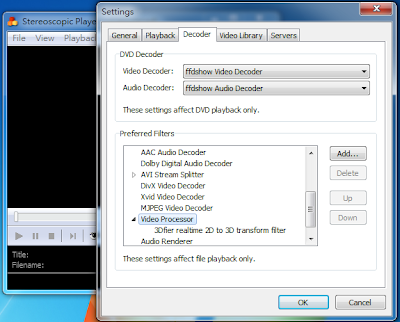
How to use 3Dfier with 3D Vision Video Player or Stereoscopic Player
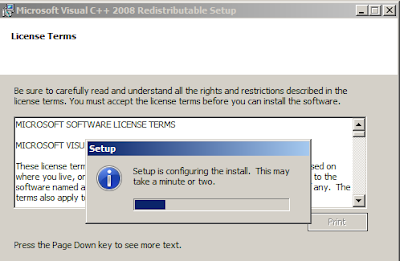
1. Uninstall the prior version of 3Dfier. Be sure to install the Visual C++ 2008 redistributable (vcredist_x86.exe) for the first time installation of new 3Dfier.


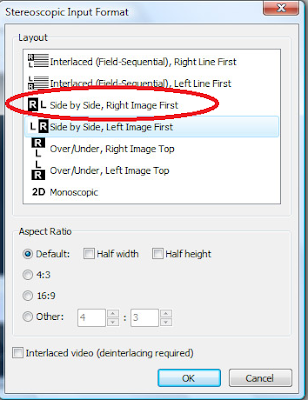
When opening a video file from Stereoscopic Player, select Side-by-Side input format.
After successfully installed 3Dfier, you can find 3Dfier Control Panel on the Desktop and in the Windows Start Menu.

Launch 3Dfier Control Panel and you will find a 3D icon in the system tray.
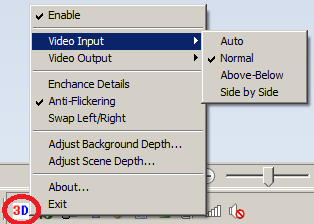
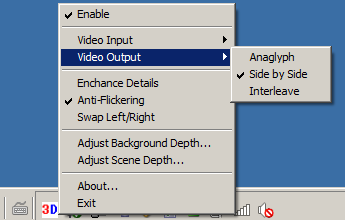
Right Click on the 3Dfier icon to get access to the controls:
1. [Enable]: click on this to enable or Disable 3Dfier 2D to 3D conversion. Any selection will take effect only when you launch Strereoscopic Player or open a file next time when filter driver can be loaded.
2. [Video Input]: In order to make 2D to 3D conversion work for Stereoscopic Player, please select "Normal" (default).
3. [Video Output]: Select "Side by Side" (default) for Stereoscopic Player.
4. [Enhance Details]: This is a new feature that could take more CPU usage in order to render detail 3D effects.
5. [Anti-Flickering]: For reducing the flickering effects during scene change. (default enabled)
6. [Swap Left/Right]: This is for swapping left and right eyes depending on the left and right settings you might set for Stereoscopic Player.
7. [Adjust Background Depth]: This is used to adjust the depth of the background.
8. [Adjust Scene Depth]: This is used to move the overall scene forward or backward.
With these settings properly set, you can start to enjoy our most natural 2D to 3D conversion experience we are to offer. Thanks for using 3Dfier.
Sunday, July 4, 2010
3Dfier Directdhow filter v1.0.21 demo is ready for download
-Fix compatibility issues with some versions of Media Player Classic
-Add the support for DVBViewer through its postprocessing plugin. Now you can watch DVB broadcast in 3D! Anaglyph, fullscreen interleave mode for Passive Polarizer Displays and eDimensional shutter glasses are supported. The setup of the plugin is a bit complicated. Hopefully DVBViewer folks will come out an easier setup soon.
Here you can download the latest demo.
Saturday, June 26, 2010
DVBViewer works with 3Dfier
Saturday, June 12, 2010
Watch World Cup with Stereoscopic Player in 3D
Tsubaki, Japan Shampoo ad converted to 3D with 3Dfier algorithm
Monday, June 7, 2010
How to regsiter with your product key

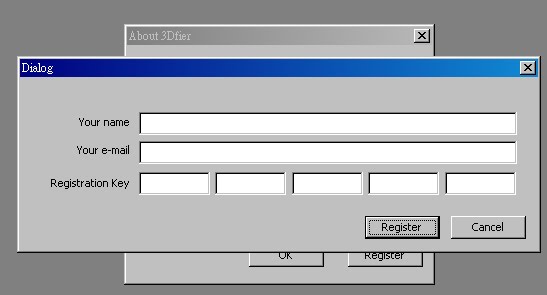
Open the 3Dfier Control Panel. Find it on the system tray and right click the icon, select "About"
In the "About" dialog, click on register.

In the dialog below, enter your name, your e-mail and registration key exactly as what we have sent to you in the e-mail et voila! You should see a success message after you click on Register button.
Friday, June 4, 2010
Stereoscopic Player works with DVD and so does 3Dfier!
If you use Media Player Classic, see here for the setting to make DVD works.
Thursday, May 20, 2010
3Dfier works with e-Dimensional shutter glasses!
Edit
Thanks to jcon's feedback on e-Dimensional with 120Hz projector below:
jcon said...
Hi guys,
I use eDimensional shutter glasses together with a 120Hz compatible Acer projector and there is a better way of using them with the 3Dfier plugin: You can use EDActivator.exe from the eDimensional homepage and select "page-flipping" from the menu. In Stereoscopic Player you also select "software page flipping" as the viewing method. In 3dfier you select side by side output instead of interleave. This combination gives a much brighter picture!