The Patent Pending 3Dfier
is a directshow filter that transforms normal video file to 3D in realtime. 3Dfier filter works with popular media players and support various video format as long as the files were played using direcshow.
Here you can download demo versions for evaluation purpose. This demo version runs for around 10 minutes. We are happy to work with 3D display makers/OEMs to customize a filter that works for the specifc display. Anaglyph is not the best way you can view 3D with 3Dfier filter but it is most easily available. 3Dfier works perfectly with side-by-side 3D Displays such as iZ3D monitor. It also works with 3D Vision Video Player and Stereoscopic Player that supports multiple 3D Display devices including Zalman 3D monitor, nVidia 3D Vision, e-Dimensional shutter glasses and 3DTVs. Current version works with most versions of Media Player Classic. It also works with DVBViewer and allows you to watch DVB TV channels in 3D. Contact us for more information and partnership opportunity.

Wednesday, August 24, 2011

How to Use 3DTV Desktop

Requirements:

Windows 7 with Aero Glass support is required to run 3DTV Desktop. From the "Personalization" Control Panel. Choose one of the Aero themes to enable Aero Glass Support.

As the screen will be reduced into half width, it is recommended to choose larger font from "Display" Control Panel for a better view.


How to use:


Download and extract the 3DTV Desktop V1.0.0.exe. No need to install the application. Connect your PC to the 3DTV and set display mode to external (projector) only by Win + P key. While output is at 3DTV only, run 3DTV Desktop V1.0.0.exe.

When the application is first executed, you will see the display shrink in half to the left like:


You can now turn on the 3D mode from your 3DTV remote and choose to convert side-by-side to 3D. Now you will see left screen and the right white background overlayed to show a bright normal Windows Display.

Under 3DTV mode, you can use "Ctrl+2" to go back to normal Display and "Ctrl+3" to enter the 3DTV mode again.

3DTV Desktop detects the display mode changes and apply the settings to the primary display. If you see a wrong dimension after mode switches, press ctrl+2 and then ctrl+3 to reset the dimension.

3DTV Desktop will monitor the top Window in focus and when it becomes full screen, 3DTV Desktop will automatically switch to normal mode so that you can watch the full screen video in 3D automatically. This is very useful when you play side-by-side videos from a player or from the website. For example, when you see a 3D side-by-side Youtube video on the Youtube web page, you will see the video displayed side-by-side on the page. Once you click to play the video in full screen, you will see the video played in 3D seamlessly on your 3DTV and when you exit full screen mode, 3DTV Desktop would automatically switch back to 3DTV mode so that you can gain control to the browser screen without having to turn off the 3D mode from your 3DTV by the remote control. This is a life saver for 3DTV owners!

Use tray menu to quit/exit 3DTV Desktop or register the product.

Known Issue and Limitation:

When you saw a "Failed to register hotkey" error message, it is because 3DTV Desktop application is already running.

When at 3DTV mode, there would be 2 cursors on the screen. The thinner one is the right cursor for the screen. This is the limitation of the product and we will not be fixing it. It won't affect your pleasure viewing 3D contents.

Thursday, June 23, 2011

New Software Release This Summer

Soon we will be releasing an interesting solution for 3DTV plus 2D to 3D video conversion support to the 3Dfier filter. Enjoy the summer holidays and see you soon...

Thursday, May 19, 2011

New Download Website

Hi there,

As we have changes the website a little bit these days, you might find a problem downloading the latest demos. This has been fixed now. Please re-try if you had the problem before. Thanks for your support to our products.

Monday, January 24, 2011

Closing from 1/29~2/7 for Chinese New Year holidays

Dear Customers,

We will be closing for Chinese New Year holidays from 1/29 to 2/7. We will not be able to deliver for any order placed during this period. Please be patient with us and we will provide our best support after the holiday. Happy Chinese New Year!

3Dfier staff

Wednesday, August 11, 2010

3Dfier supports 3DTV!

If you recently purchased a 3DTV that does not come with built-in 2D to 3D conversion capability, no worries. 3Difer can work with most of the 3DTV on the market. Here is how it works:

Most 3DTVs on the market today have the capability to turn side-by-side video to frame sequential format automatically with a 3D button on the remote control to work with the shutter glasses that come with the 3DTV. This is mainly for the 3D broadcasting that are running in side-by-side format. What you need to do is to use either Stereoscopic Player or Media Player Classic and make sure you set the output format to side-by-side (which is default of 3Dfier) and play the video to full screen. Then turn on the side-by-side to 3D by the remote control et Voila!

Some 3DTVs like Samsung's disabled the side-by-side to 3D conversion when the input is HDMI 1.4 3D compliant mode (1280x720@60Hz or1920x1080@24Hz) . Make sure you do not set to these modes in order to make it work. In fact, if you are running a current shipping PC, it might come with only HDMI 1.3 and you won't have the HDMI 1.4 3D support. This is bad for BD3D playback but it will work well with side-by-side to 3D conversion or 2D to 3D conversion with 3Dfier! Enjoy the experience of 3Dfier on the large TV screen today!

Tuesday, July 13, 2010

User's Guide for Stereoscopic Player

3Dfier User's Guide for Stereoscopic Player


Requirement:

Stereoscopic Player 1.5.4 or above.


How to use 3Dfier with 3D Vision Video Player or Stereoscopic Player

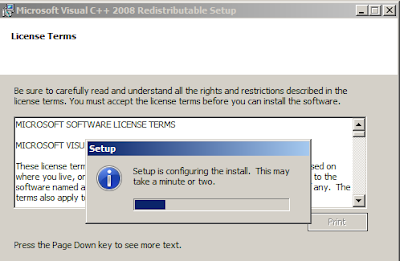
1. Uninstall the prior version of 3Dfier. Be sure to install the Visual C++ 2008 redistributable (vcredist_x86.exe) for the first time installation of new 3Dfier.


2. Install 3Dfier 2D to 3D DirectShow filter.


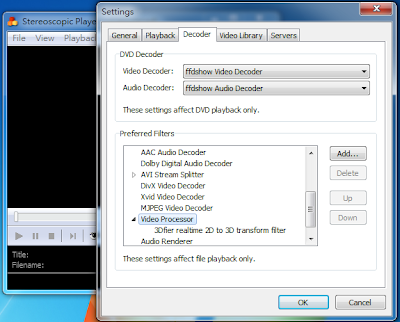
3. Install 3D Vision Video Player or Stereoscopic Player, open the File menu, choose Settings and get to the Decoder tab. From the "Preferred Filters" menu select the Video Processor and click on the Add button, then select the "3Dfier 2D-to-3D Transformer filter" from the from the list of available filters on your system.


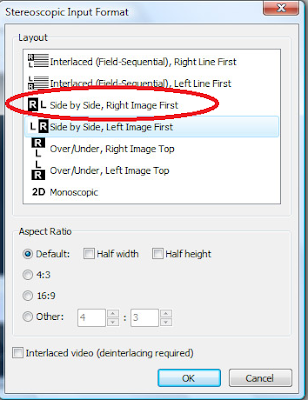
When opening a video file from Stereoscopic Player, select Side-by-Side input format.

How to use 3Dfier

After successfully installed 3Dfier, you can find 3Dfier Control Panel on the Desktop and in the Windows Start Menu.


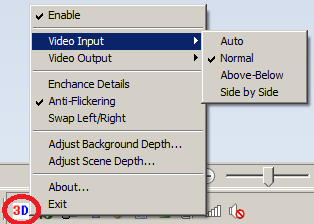
Launch 3Dfier Control Panel and you will find a 3D icon in the system tray.


Right Click on the 3Dfier icon to get access to the controls:
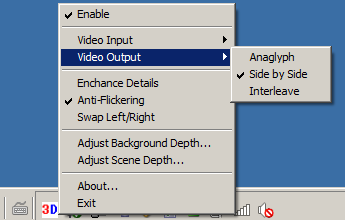

1. [Enable]: click on this to enable or Disable 3Dfier 2D to 3D conversion. Any selection will take effect only when you launch Strereoscopic Player or open a file next time when filter driver can be loaded.

2. [Video Input]: In order to make 2D to 3D conversion work for Stereoscopic Player, please select "Normal" (default).

3. [Video Output]: Select "Side by Side" (default) for Stereoscopic Player.

4. [Enhance Details]: This is a new feature that could take more CPU usage in order to render detail 3D effects.

5. [Anti-Flickering]: For reducing the flickering effects during scene change. (default enabled)

6. [Swap Left/Right]: This is for swapping left and right eyes depending on the left and right settings you might set for Stereoscopic Player.

7. [Adjust Background Depth]: This is used to adjust the depth of the background.

8. [Adjust Scene Depth]: This is used to move the overall scene forward or backward.

With these settings properly set, you can start to enjoy our most natural 2D to 3D conversion experience we are to offer. Thanks for using 3Dfier.

Sunday, July 4, 2010

3Dfier Directdhow filter v1.0.21 demo is ready for download

What's new in this release:

-Fix compatibility issues with some versions of Media Player Classic

-Add the support for DVBViewer through its postprocessing plugin. Now you can watch DVB broadcast in 3D! Anaglyph, fullscreen interleave mode for Passive Polarizer Displays and eDimensional shutter glasses are supported. The setup of the plugin is a bit complicated. Hopefully DVBViewer folks will come out an easier setup soon.

Here you can download the latest demo.